

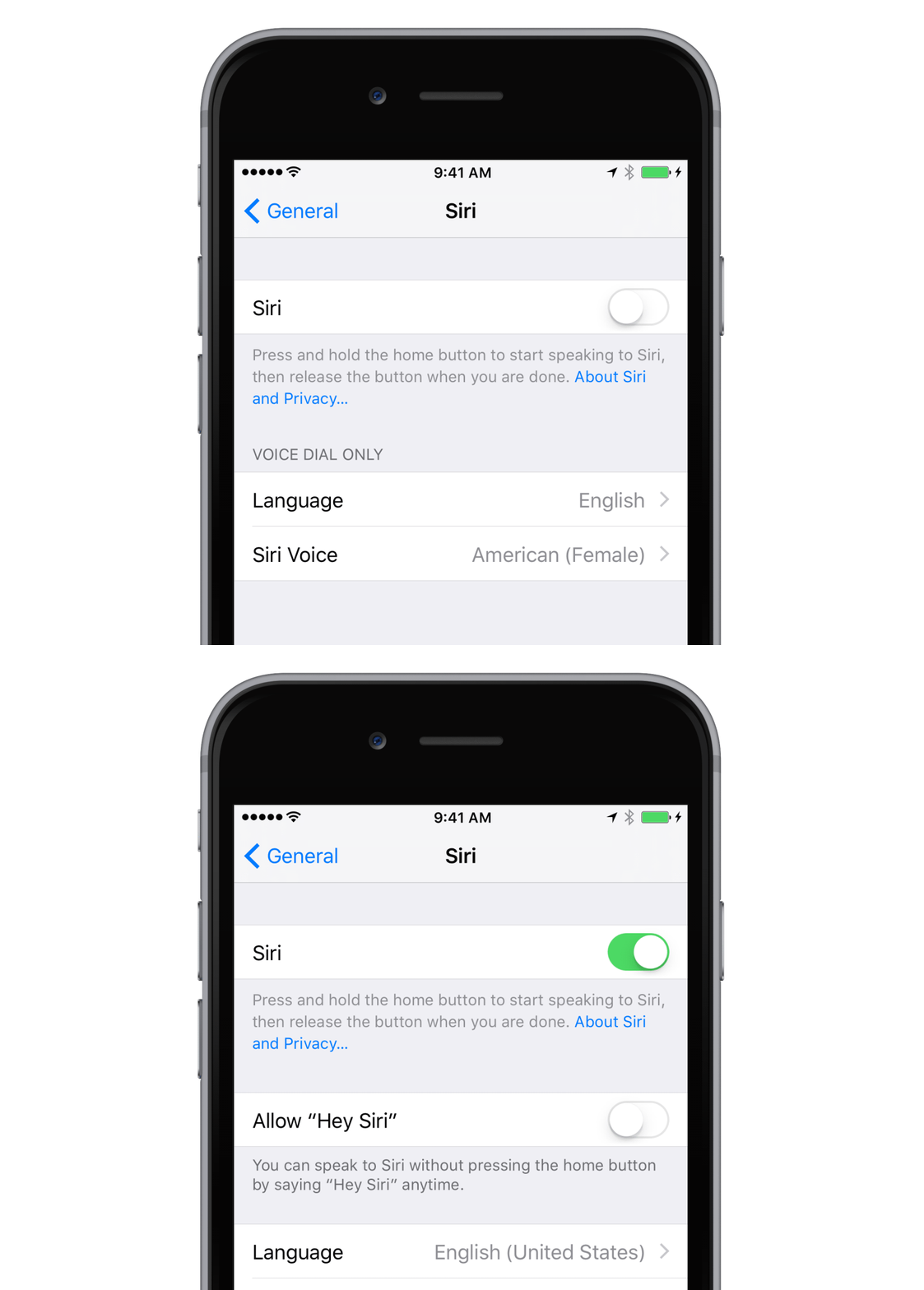
To make sure that Siri is enabled, open the Settings app on your Apple device. From the Settings app, tap General then tap Siri to access Siri settings.
At the Siri settings screen, you can turn Siri on and off and adjust Siri's language, accent, and gender.
If the On/Off Slider to the right of 'Siri' on the Siri settings screen is green, Siri is already enabled and ready to obey your commands! If the On/Off slider is grey, Siri is disabled. Tap the slider button once to turn it green and enable Siri on your
Launching Siri
Once you've confirmed your device has Siri and that Siri is turned on, there are a number of ways to access Siri on your Apple device.
The most common way to launch Siri, is to press and hold the Home Button. You'll know that Siri is listening and ready to help when your screen darkens and a colorful wavelength graphic appears at the bottom of the screen.
When your device is charging, you can simply say "Hey Siri!" to launch Siri. This feature has to be turned on in Siri settings. With the iPhone 6s and 6s Plus you can use "Hey Siri!" even when your device is not charging.
The most common way of launching Siri is to press and hold the .
That's right!
Nope, try again!
The answer is: home button
While the wavelength is glowing, you can ask Siri a question or give her a command. You can say things like: "What is the weather today?" or "Set an alarm for 6:00 am tomorrow." You can dictate notes, text messages, and emails or ask Siri to call one of your contacts.
If you take too long to make your request, or speak too quietly, the colorful wavelength graphic will disappear and Siri will give you examples of tasks she can complete for you. Tap on the microphone at the bottom of the screen to let Siri know that she should begin listening to a new request.
If you'd like suggestions of what you can ask Siri to do, press and hold the home button and then wait until the microphone appears. Then tap on the '?' icon in the bottom left of your screen to see a comprehensive list of the tasks Siri can complete and the apps with which she can interact.
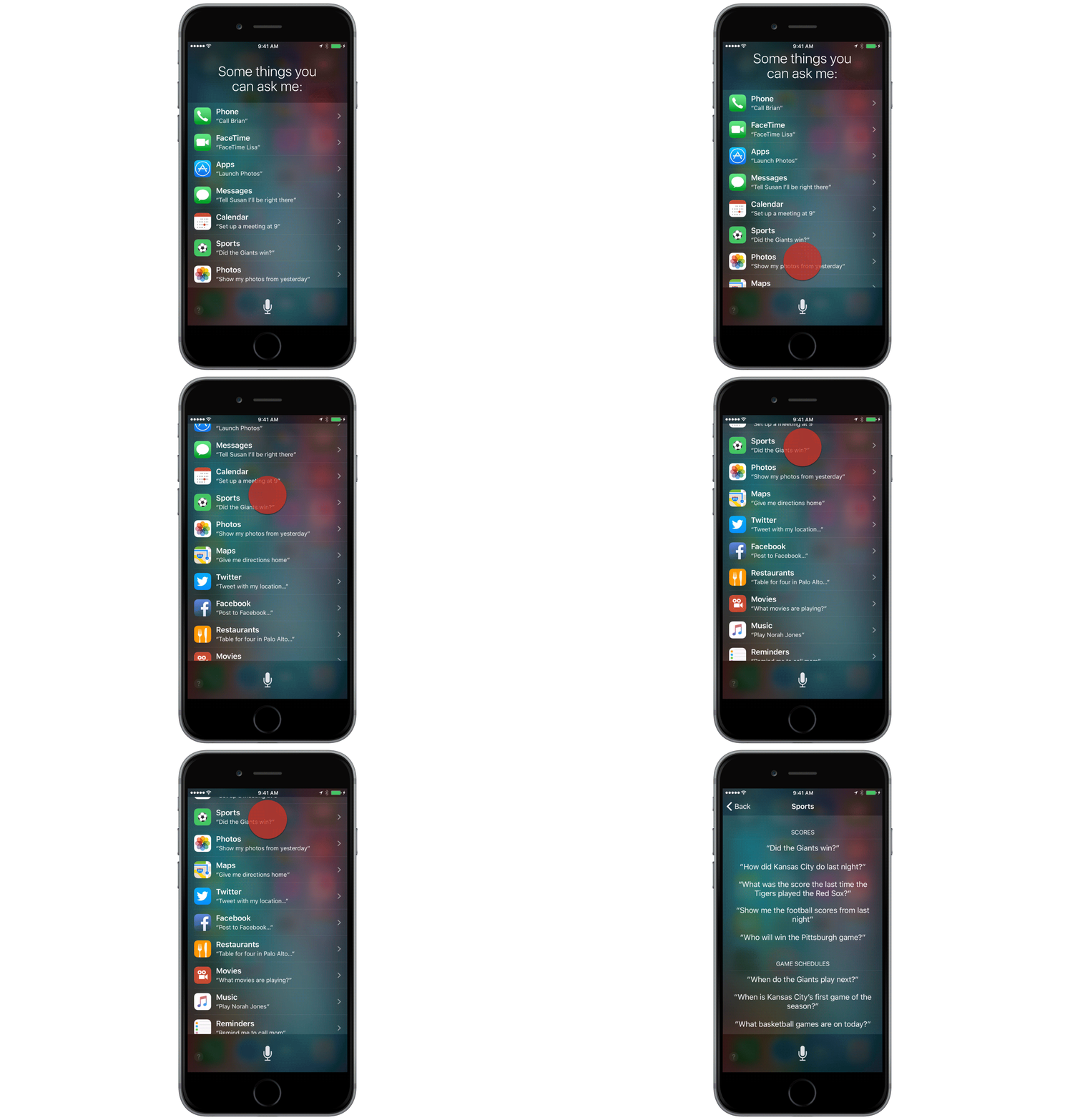
Swipe up to scroll down the list. Tap on one of the options to see a list of specific commands you can give Siri on the selected topic. For example, if you tap 'Sports,' you will find a list of example requests and commands related to scores, game schedules, standings, player information, and team information.
Which of the following do you tap to see a list of commands that Siri understands?



That's right!
Nope, try again!
It was this one.